
Optimize page assets
Compress banners, blog images, product photos, icons, and graphics in one workflow.
Optimize website images in batches: banners, blog images, product photos, icons, graphics, and page assets. Keep original file names and folder paths so replacing images in your website project stays simple.
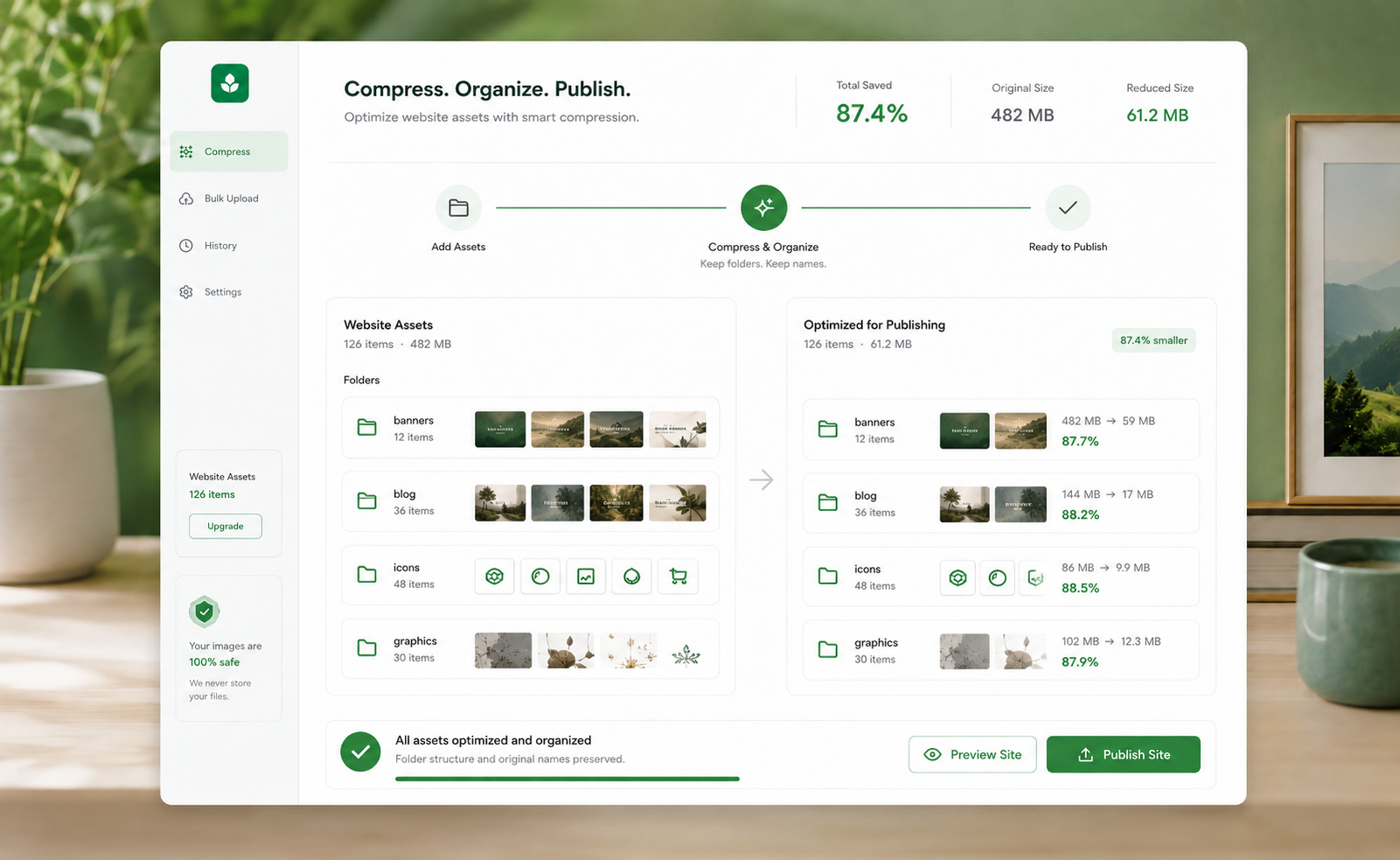
A website often contains many image types across different folders. If compression flattens everything or changes file names, updating the site becomes messy. TinyKits keeps the workflow organized.
Compress banners, blog images, product photos, icons, and graphics in one workflow.
Keep folder paths whenever possible so images remain easy to place back into your project.
Maintain original image names so replacement is straightforward after optimization.
Process images locally in your browser whenever possible, without unnecessary server upload.
Website image compression is especially useful when images are grouped by page, section, content type, or upload destination.
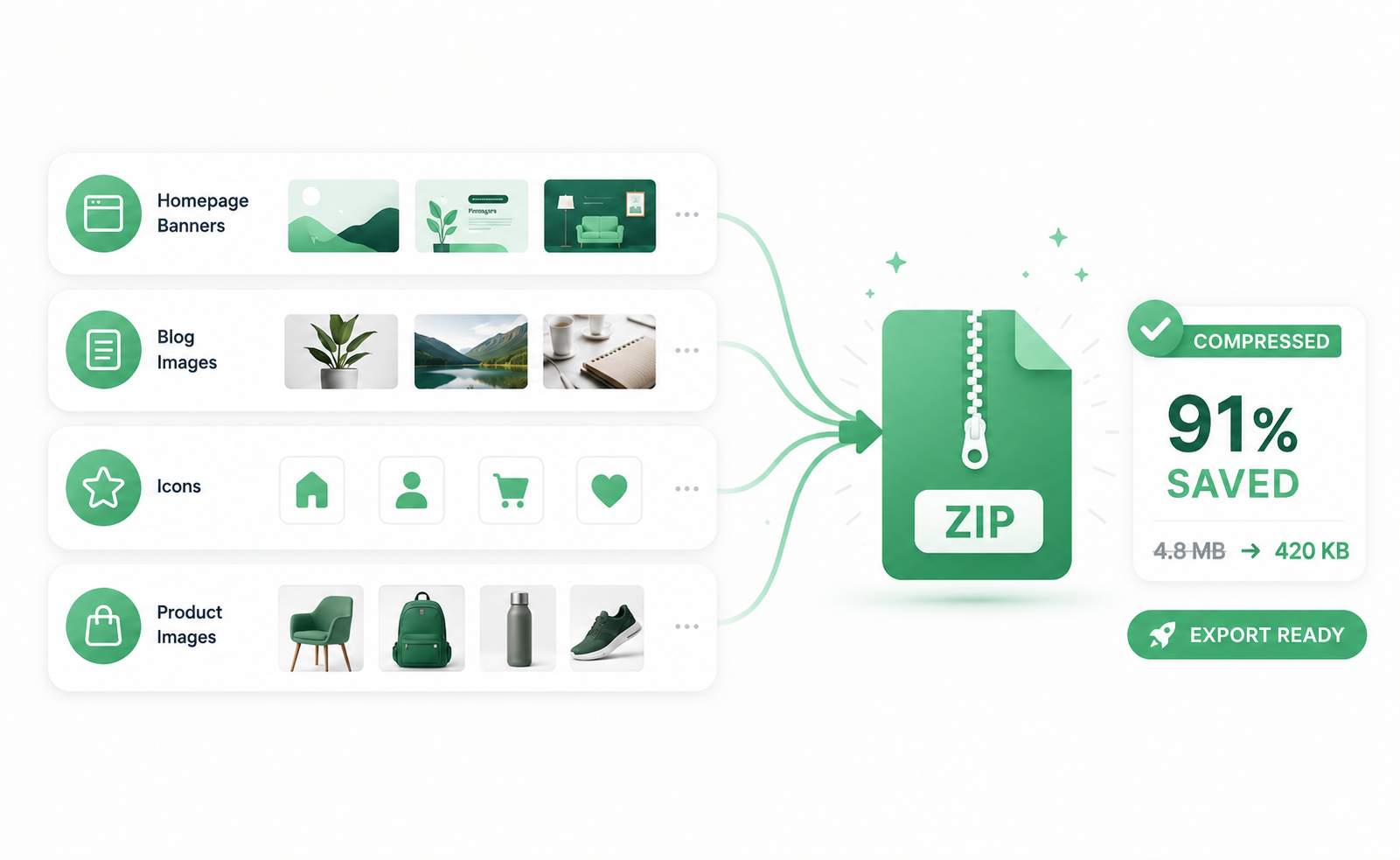 Website assets
Reduce banners, page graphics, thumbnails, and content images while keeping everything ready for replacement.
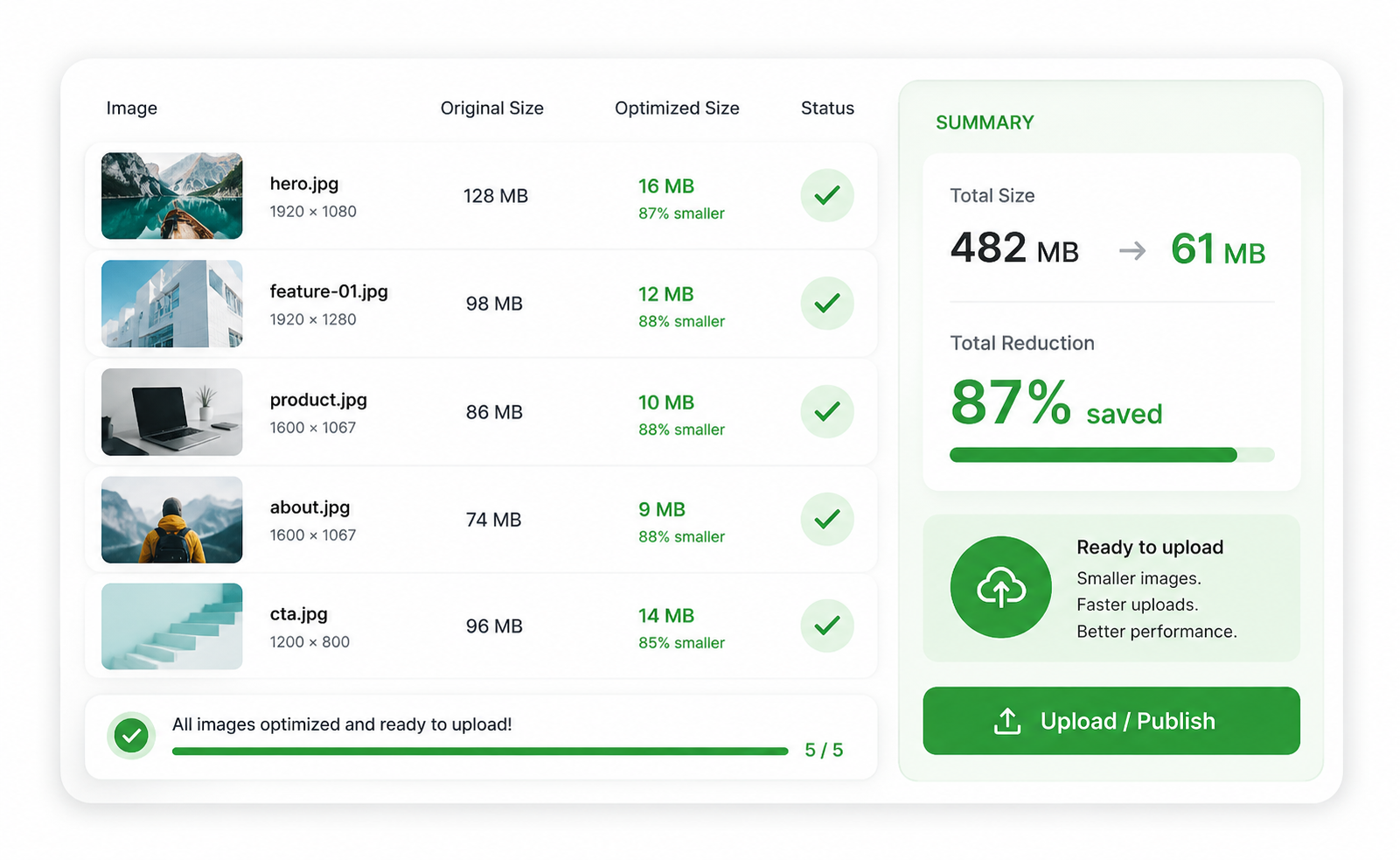 Blog & CMS
Compress blog images and CMS uploads before they slow down your pages.
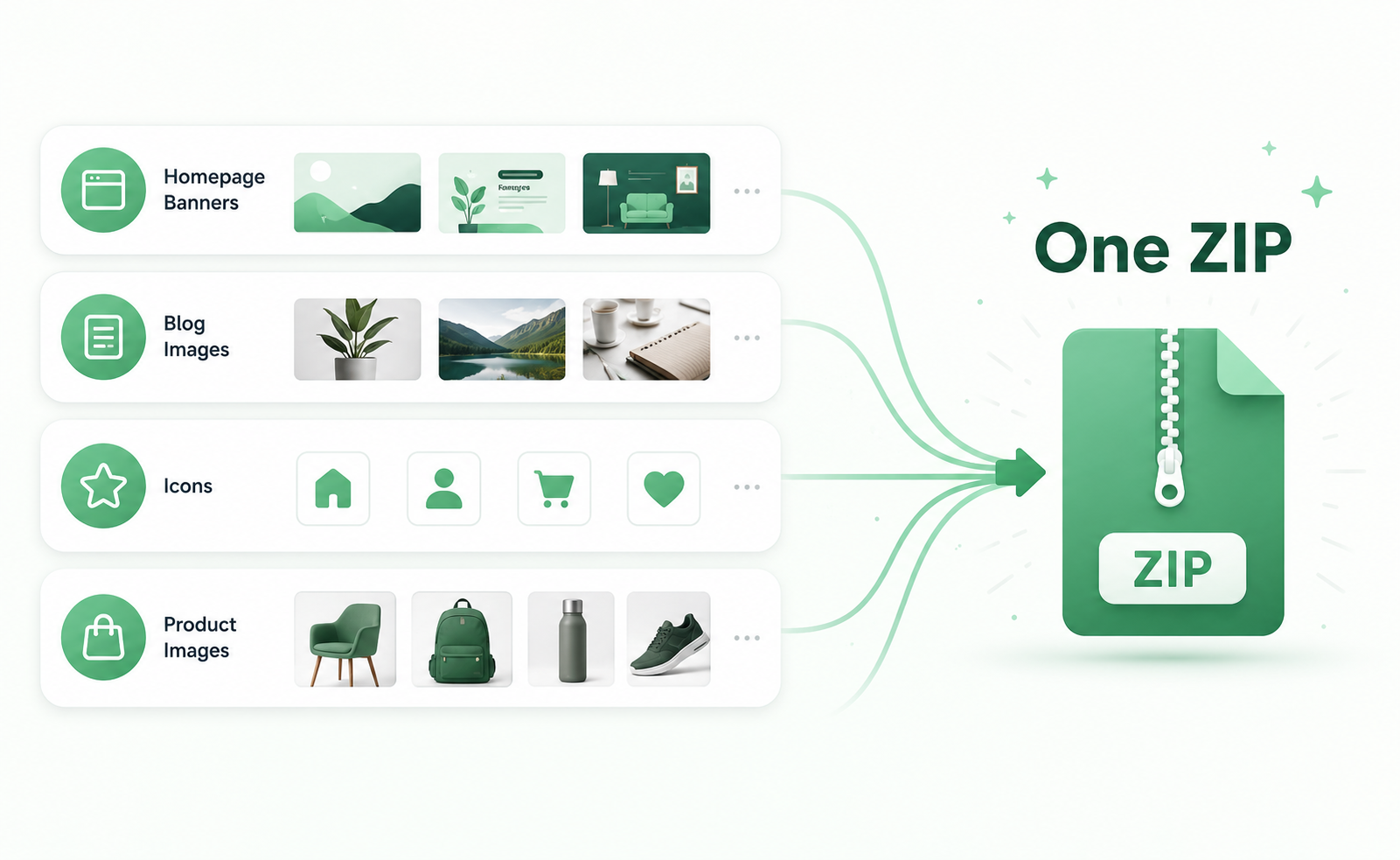 Icons & graphics
Optimize icons, UI graphics, and repeated image assets without losing the project structure.
Choose images or folders from your website project.
Images are processed in your browser whenever possible.
Local browser workflow and folder structure are preserved whenever possible.
Export organized results ready for your website project.
Open the free image compressor, select website files or folders, and export optimized images ready for your project.
Yes. You can select multiple website images or a folder of website assets and process them together.
Smaller images can help pages load faster, reduce bandwidth, and make content uploads smoother.
No. TinyKits keeps original file names whenever possible, which is important for website replacement workflows.
When you upload folders, TinyKits keeps folder paths whenever possible so website assets remain organized.
No. Image compression runs locally in your browser whenever possible. Your images are not uploaded to TinyKits servers.
TinyKits supports JPG, PNG, and WebP compression.