
Smaller files
Cut oversized images down to a more practical size, so they are easier to handle in everyday work.
Reduce JPG, PNG, and WebP image file size for websites, uploads, product pages, and content libraries. Optimize a single image, a batch of files, or a full folder — and keep everything clean, organized, and ready to use.
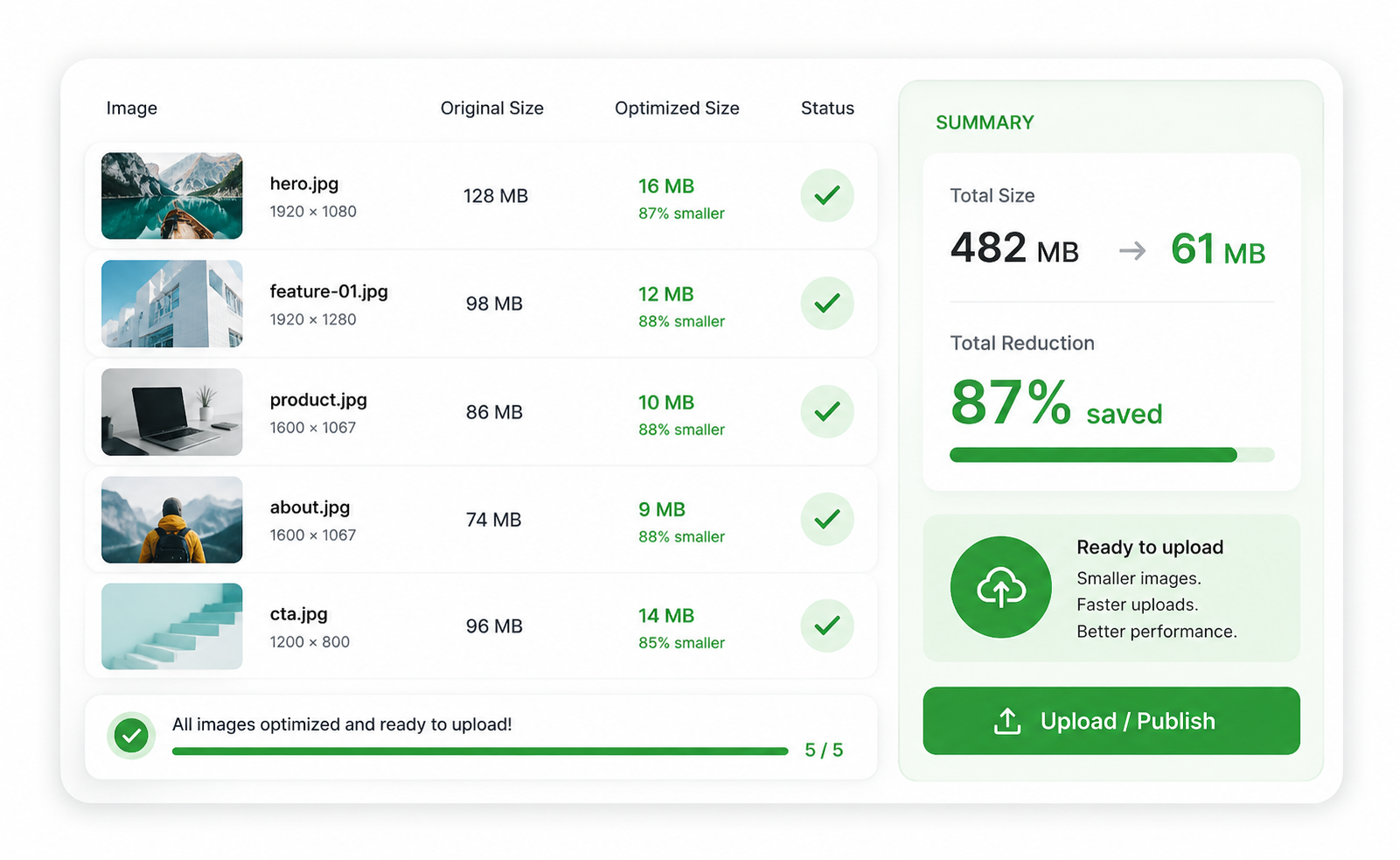
Smaller image files are easier to upload, faster to load, and simpler to manage across websites, stores, campaigns, and shared folders.
Cut oversized images down to a more practical size, so they are easier to handle in everyday work.
Lighter visuals help websites and landing pages feel faster, especially when many images appear on the same page.
Keep your image workflow tidy when you need optimized assets that are ready to replace the originals in your project.
These scenes show the kind of image-size reduction work people usually need, from one-off visuals to bigger sets of files.
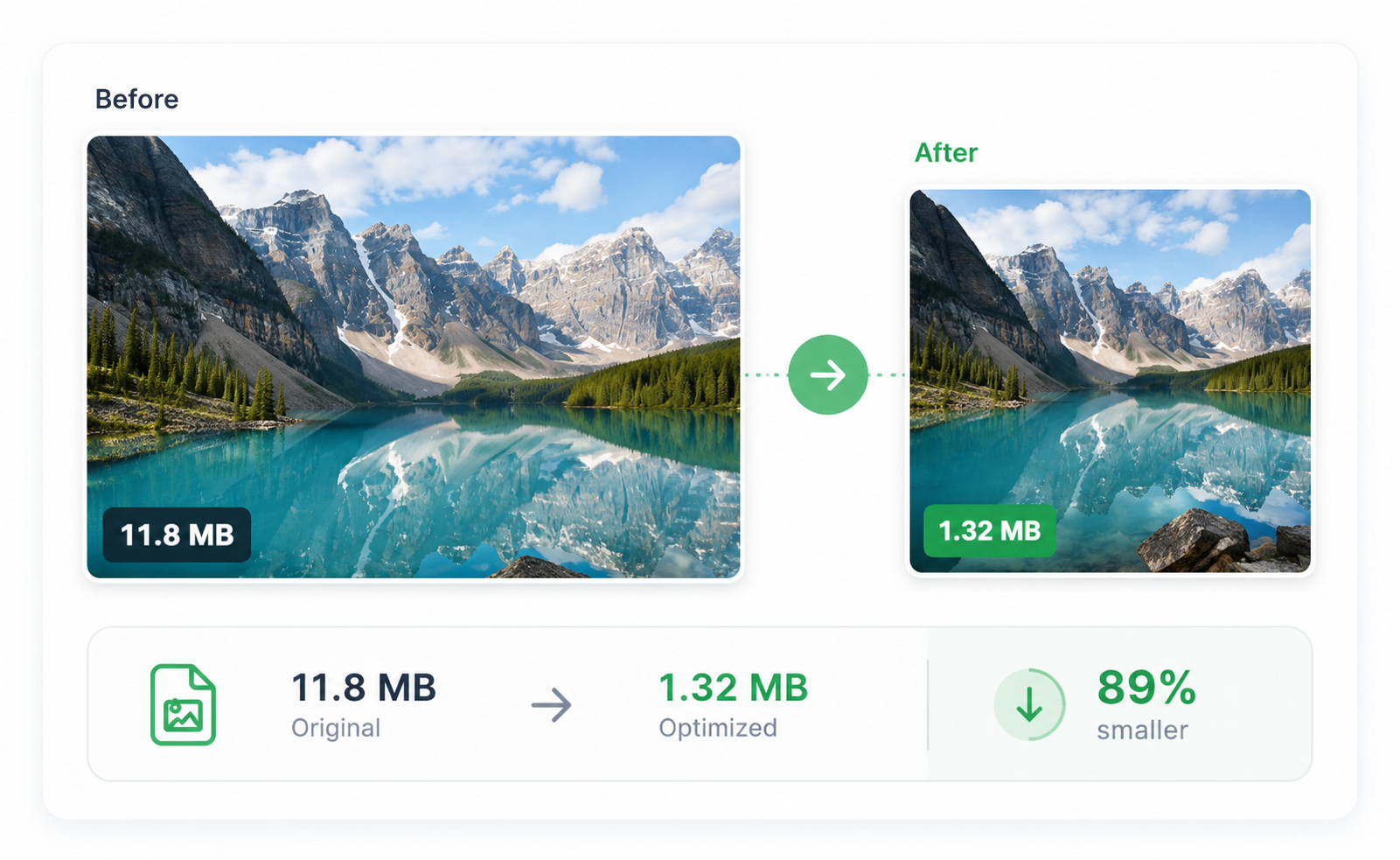
Useful when a single image is too heavy for a page builder, CMS, upload form, or email attachment.
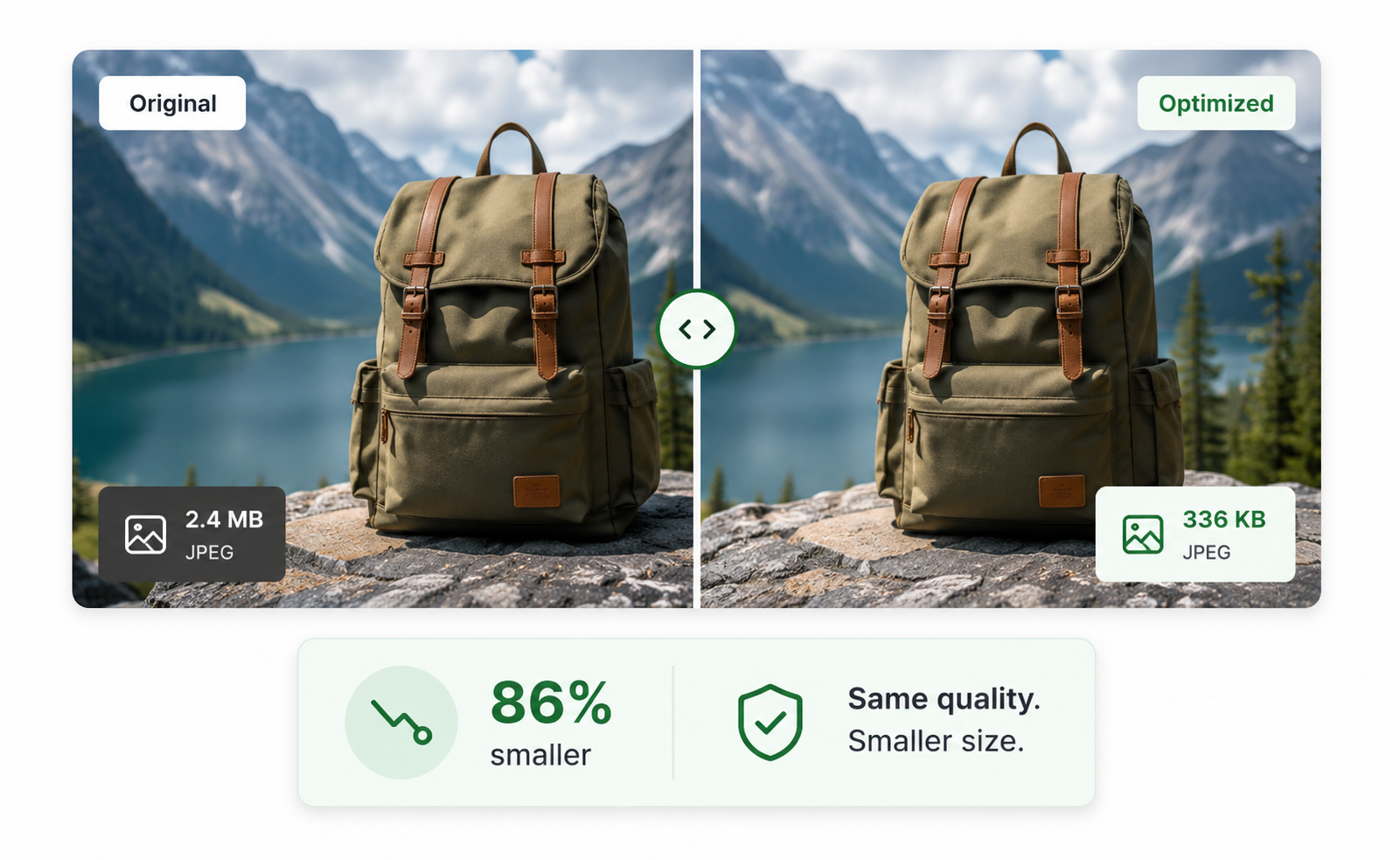
Great for product pages, hero banners, portfolio images, and other visuals that should stay clean while becoming smaller.
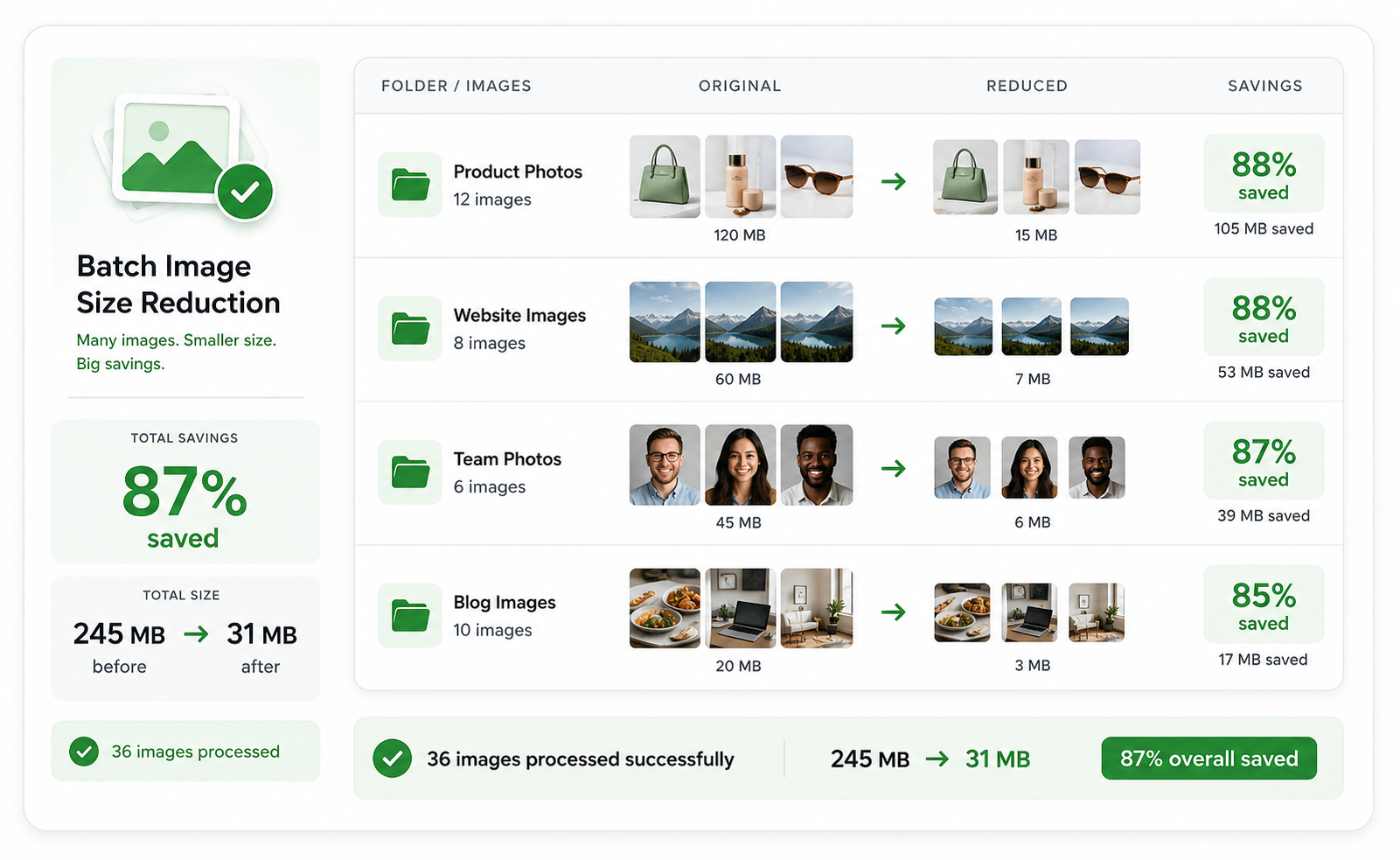
Helpful when you have a whole set of page assets, post images, or campaign files that all need to be lighter.
Reduce Image File Size is meant to support practical image workflows, not just one-off compression tests.
See image savings clearly, then move on with assets that are better suited for upload, publishing, and replacement inside a project.
When image optimization is part of your regular workflow, batch-friendly results are easier to handle than shrinking files one by one.
Everything you need to know about shrinking image files for web, upload, and content workflows.
TinyKits supports JPG, PNG, and WebP image workflows. These are the most common formats people want to reduce before uploading or publishing.
Yes. The goal is to make images smaller while keeping them visually clean enough for websites, product listings, content pages, and general sharing.
Yes. This workflow is especially useful when you need to reduce many images at once instead of handling them one by one.
No. TinyKits is designed around local browser processing whenever possible, so your images stay on your device instead of being sent to a server.
Find the right tool for the image job you need to finish faster.
Need to reduce image file size before publishing? This page is focused on that exact job: making images smaller, easier to upload, and better suited for websites, e-commerce pages, portfolios, and digital campaigns. If you need a broader workflow, the TinyKits image tool set also covers batch compression, folder compression, format conversion, and ZIP-based export.