
Compress full folders
Choose a complete image folder and process everything together instead of selecting files one by one.
Select a complete folder of JPG, PNG, and WebP images, compress everything in one browser-based workflow, and keep original folder paths and file names so project replacement stays simple.
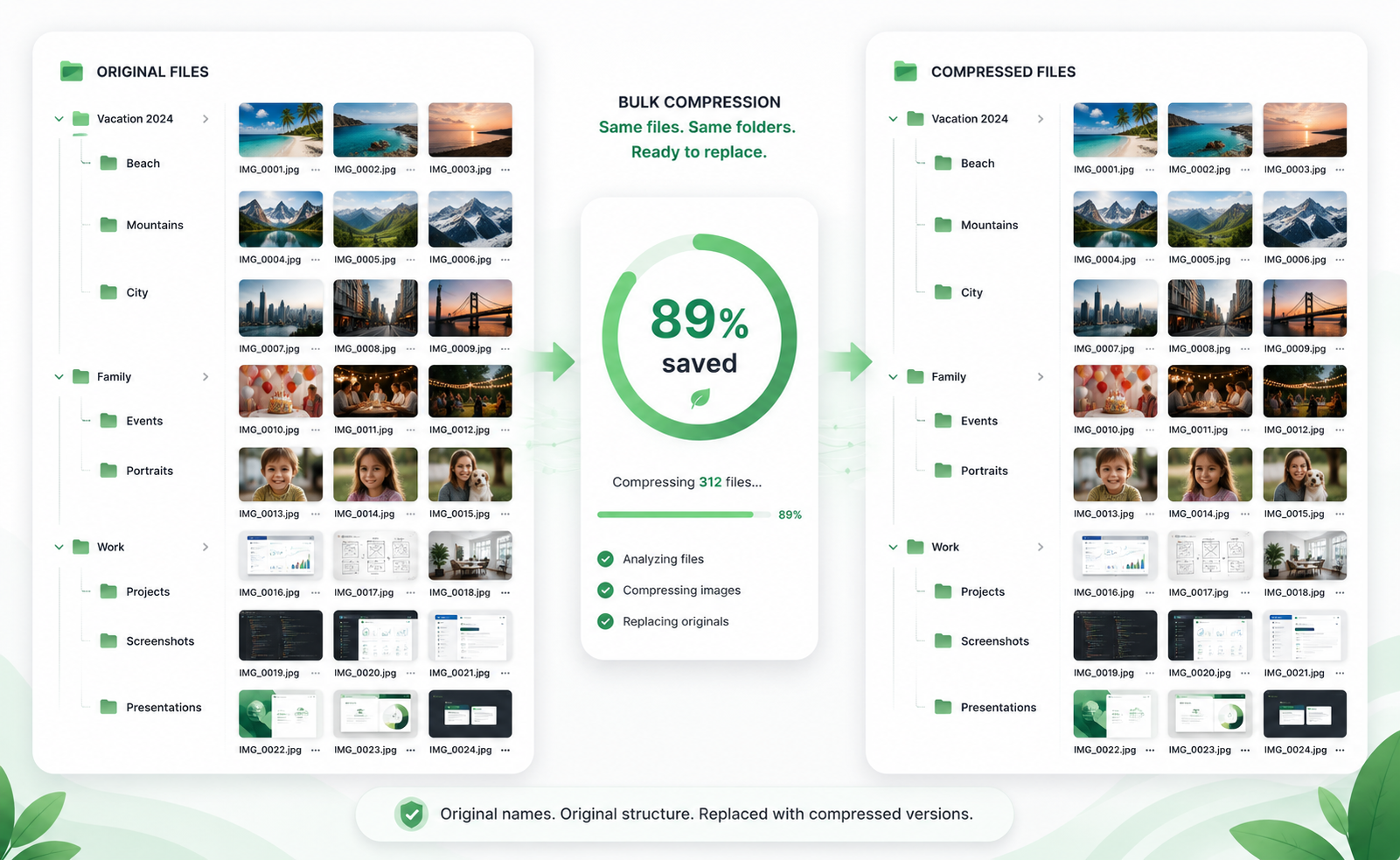
When images are already organized by page, product category, event, campaign, or project folder, compression should not destroy that order. TinyKits helps reduce file size while keeping the folder workflow easy to maintain.
Choose a complete image folder and process everything together instead of selecting files one by one.
Preserve folder paths whenever possible, so exports remain organized after compression.
Maintain original image names so replacing old assets with compressed versions is much easier.
Compress images in your browser whenever possible, with no unnecessary server upload or sign-up step.
Folder compression is especially useful when images are grouped by pages, product categories, events, campaigns, or delivery batches.
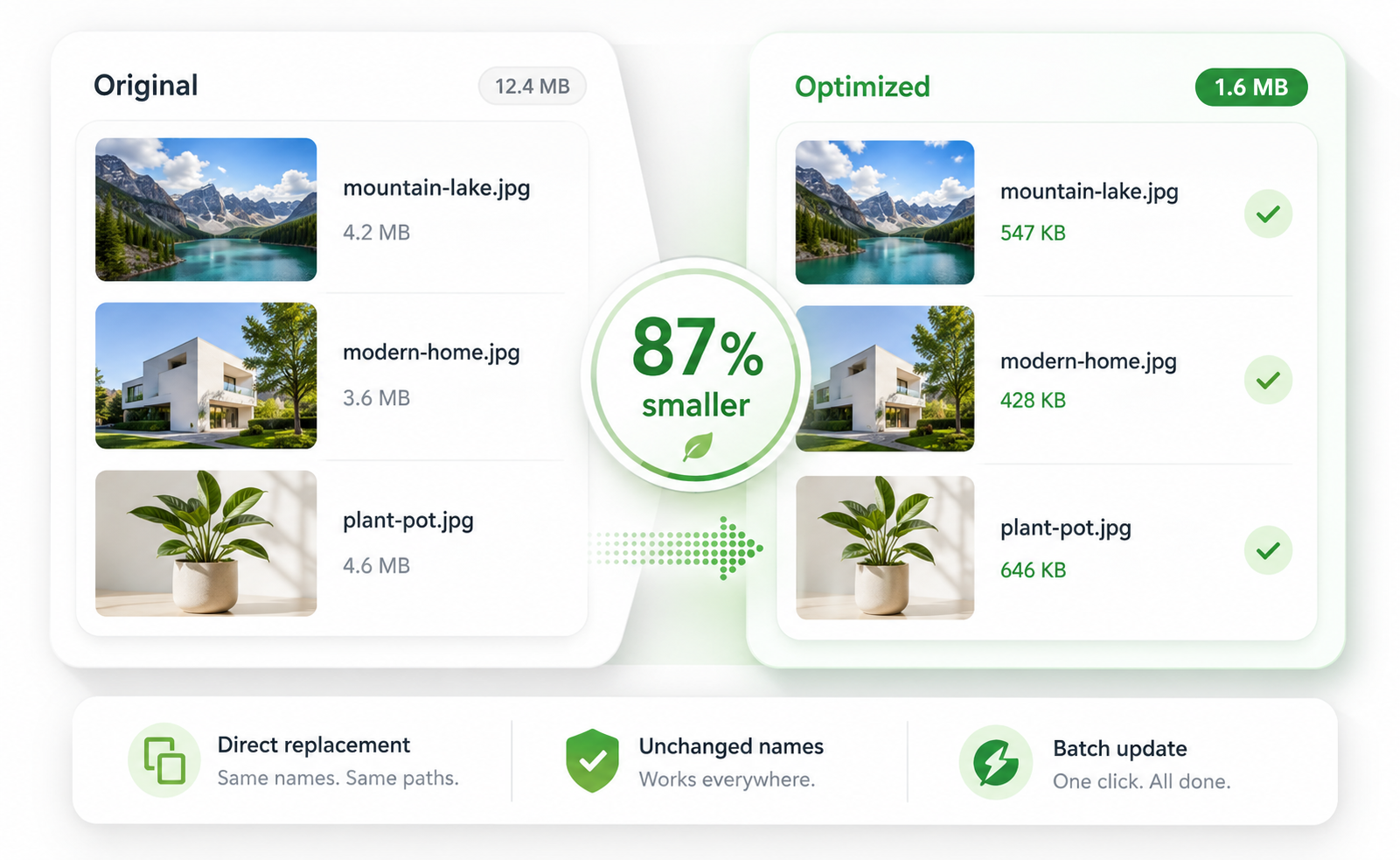 Website folders
Compress folders such as homepage, blog, products, and icons while keeping the output easy to replace.
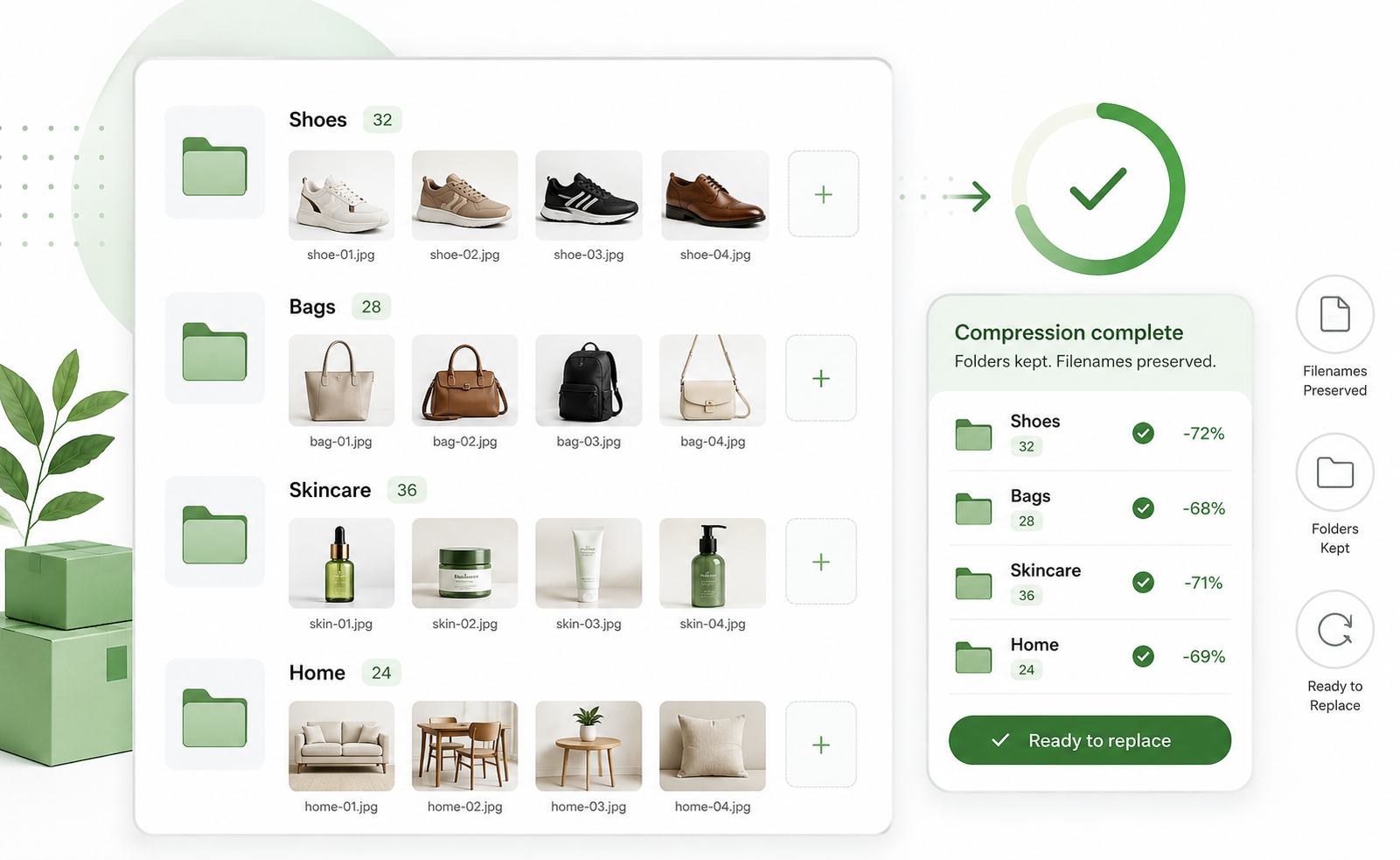 Product categories
Compress images by category, SKU, or campaign folder before uploading to your store or CMS.
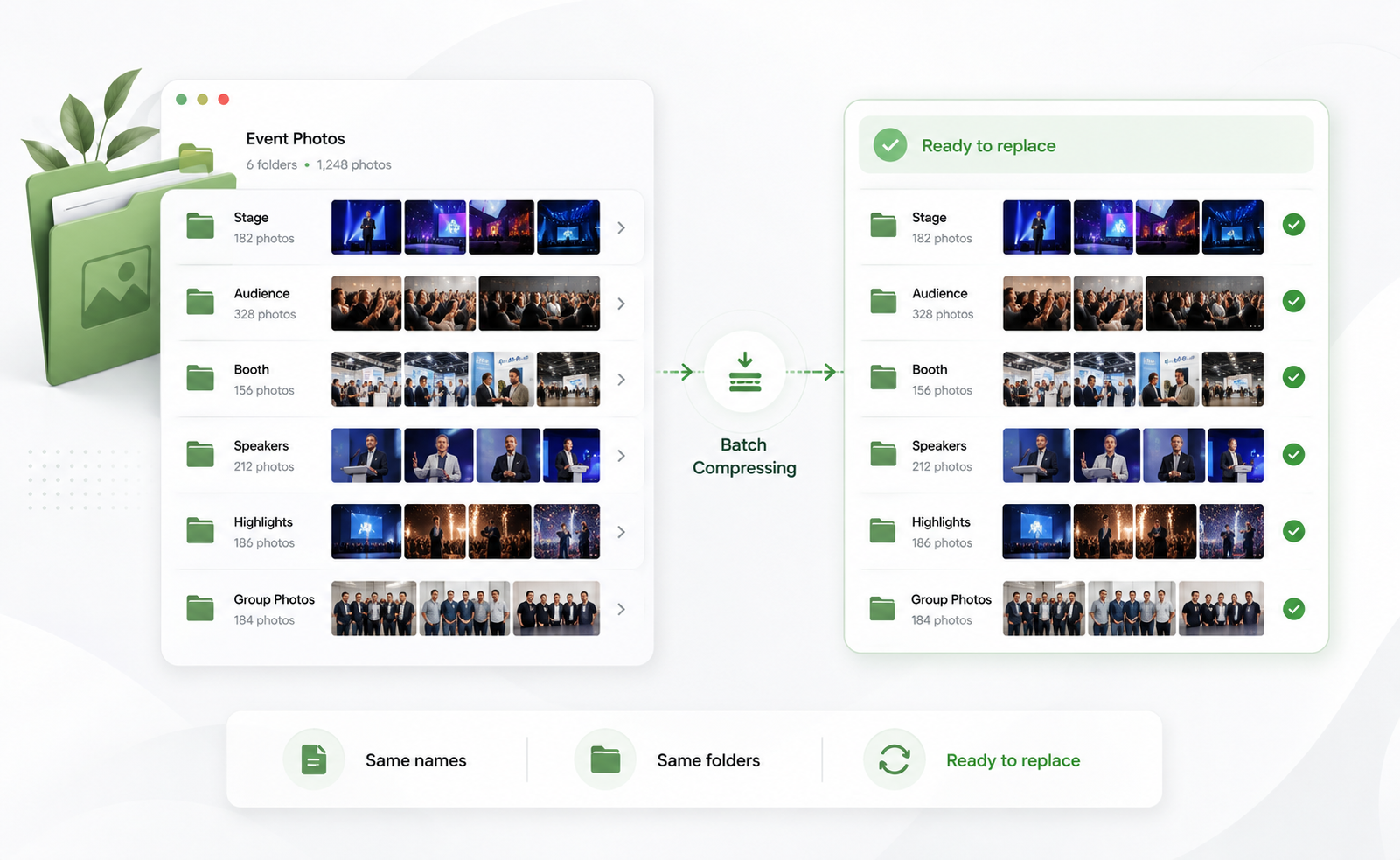 Event albums
Organize activity photos by date, location, or group, then reduce file size while keeping the album structure.
Choose an entire image folder from your device.
Images are processed in your browser whenever possible.
Local browser workflow and folder structure are preserved whenever possible.
Export organized results that are easier to reuse.
Open the free image compressor, select your folder, and keep your images organized while reducing file size.
Yes. You can select an entire folder and process its JPG, PNG, and WebP images together. Very large folders may depend on your browser and device memory.
There is no strict TinyKits upload limit in this browser-based tool. Large files and large batches depend on your device memory and browser performance.
No. Compressed images keep their original file names, which makes it easier to replace existing project assets.
When you upload a folder, TinyKits keeps original folder paths whenever possible so the processed images remain organized.
No. Image compression runs locally in your browser whenever possible. Your images are not uploaded to TinyKits servers.
TinyKits supports JPG, PNG, and WebP compression.