
No fixed image count limit
Select many images at once and compress them together instead of repeating the same task over and over.
Select multiple images or a full folder, compress them in one workflow, and export all files as a single organized ZIP. Keep file names and folder paths intact.
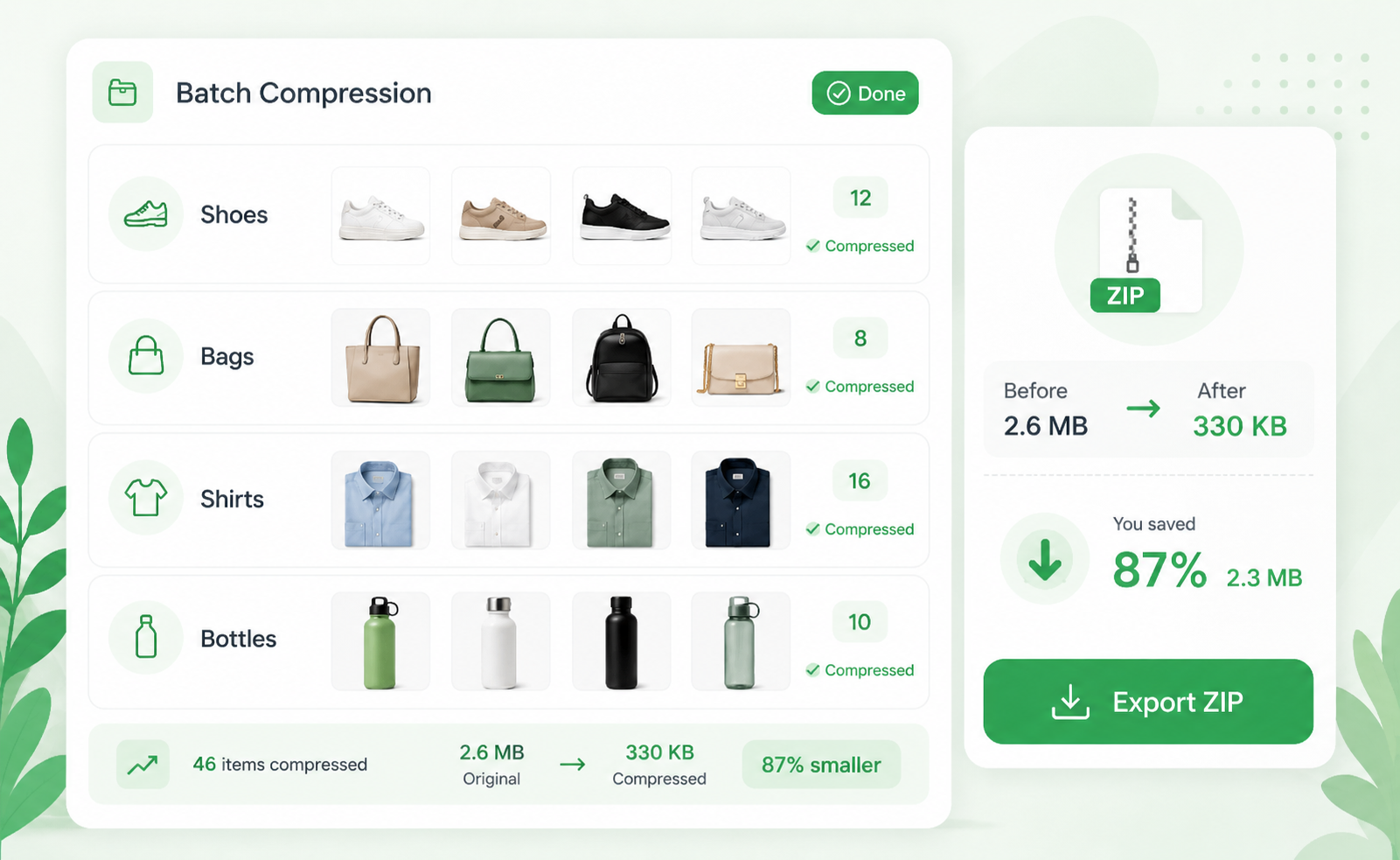
When you are updating a website, product catalog, campaign folder, or asset library, the hard part is not just reducing image size. The hard part is keeping every file organized after compression.
Select many images at once and compress them together instead of repeating the same task over and over.
Work with large website assets, product photos, and marketing images. Large batches depend on your device and browser.
Upload an entire folder and preserve the original folder paths in the exported ZIP whenever possible.
Keep file names unchanged so replacing images in a website, store, or design project is much easier.
These focused interface examples show how bulk image compression helps with product photo workflows, before-and-after quality checks, and large project exports.
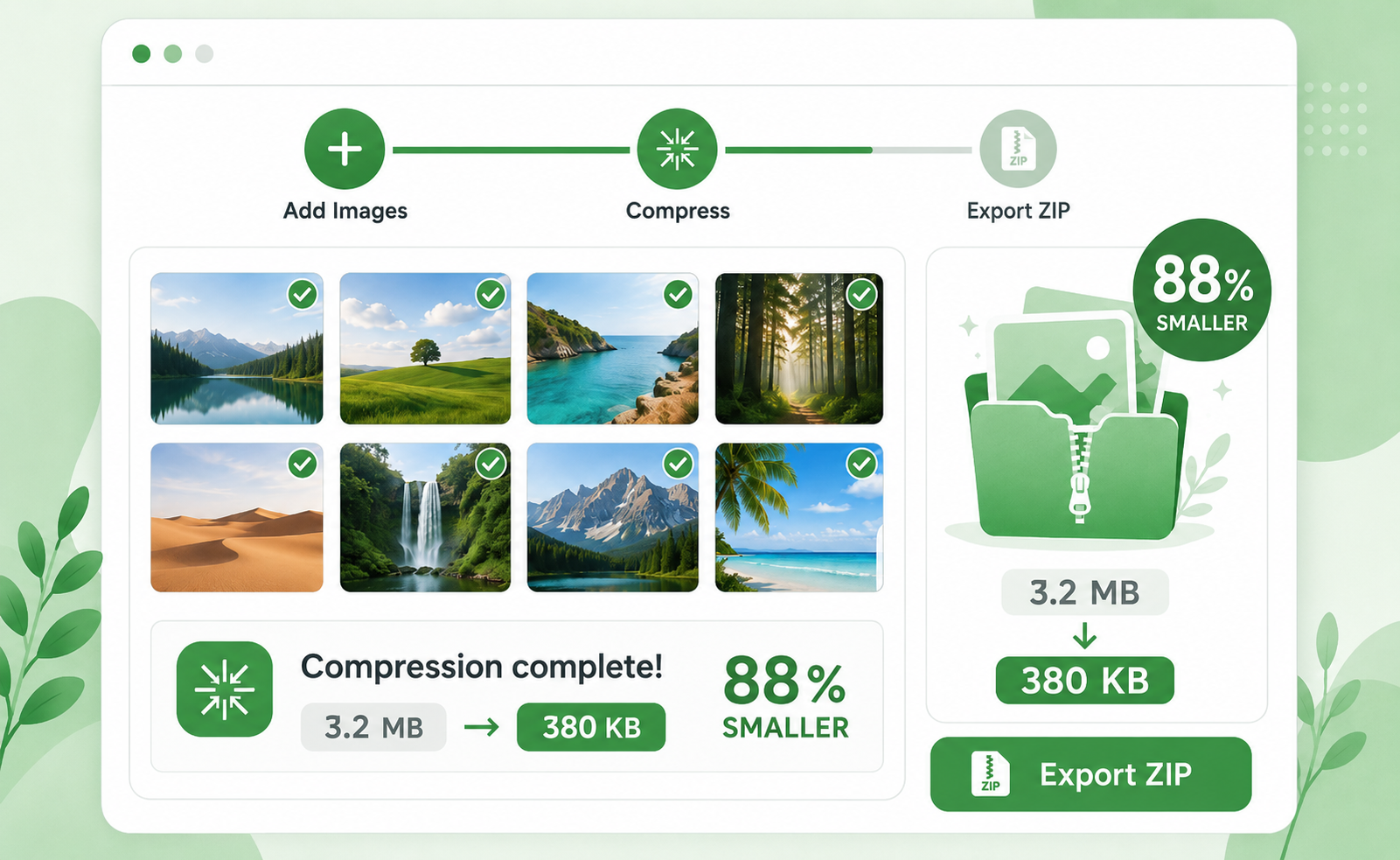 Clear savings
Show original size, compressed size, and total reduction in one quick view.
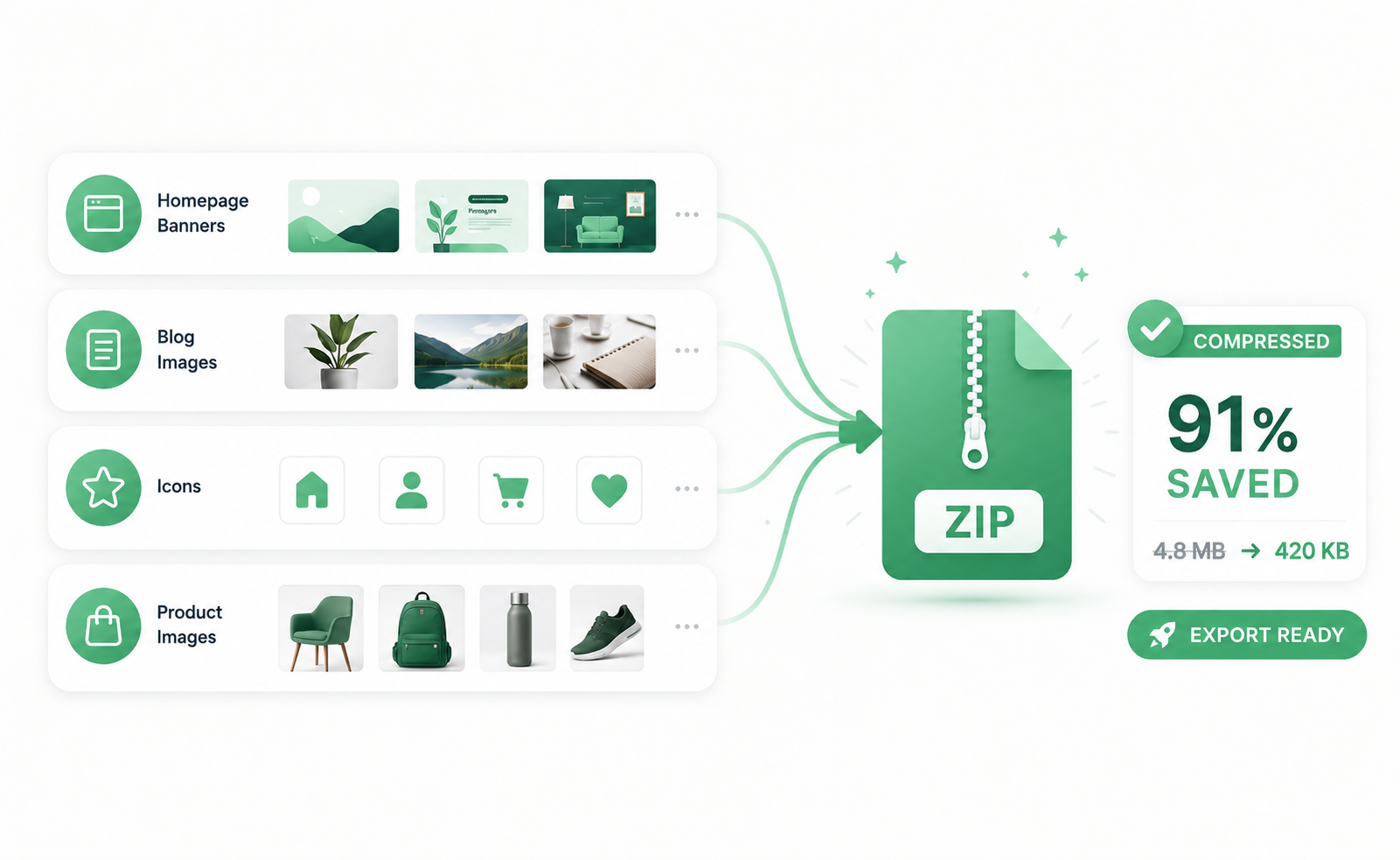 Website assets
Compress grouped website assets and export everything in one organized ZIP.
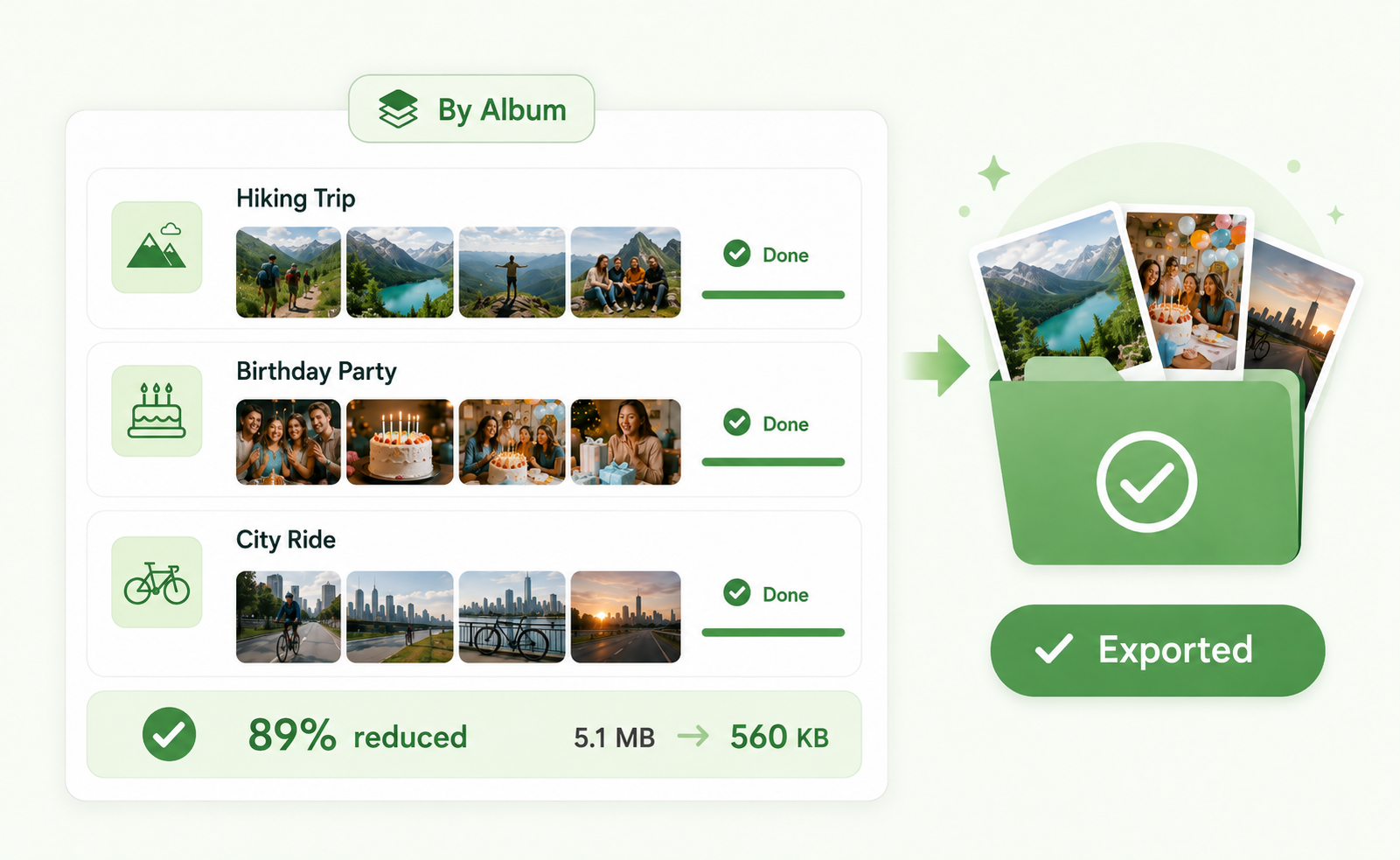 Albums & events
Compress image sets by album or batch, then export them as one finished ZIP.
Choose multiple images or upload an entire image folder.
Images are processed in your browser whenever possible.
Original file names and folder structure are preserved whenever possible.
Export one organized ZIP that is ready to use.
Open the free image compressor, select your files or folder, and export a clean ZIP with compressed images.
Yes. You can select multiple images or an entire folder and process them together. Very large batches may depend on your browser and device memory.
There is no strict TinyKits upload limit in this browser-based tool. Large files and large batches depend on your device memory and browser performance.
No. Compressed images keep their original file names, which makes it easier to replace existing project assets.
When you upload a folder, TinyKits keeps the original folder paths whenever possible in the exported ZIP.
No. Image compression runs locally in your browser whenever possible. Your images are not uploaded to TinyKits servers.
TinyKits supports JPG, PNG, and WebP compression.