
Folder compression
Select a product image folder instead of choosing every JPG, PNG, or WebP file manually.
Batch compress e-commerce product photos by folder. Keep original file names and nested folders so optimized images can directly replace your Shopify, WooCommerce, marketplace, or website product assets.
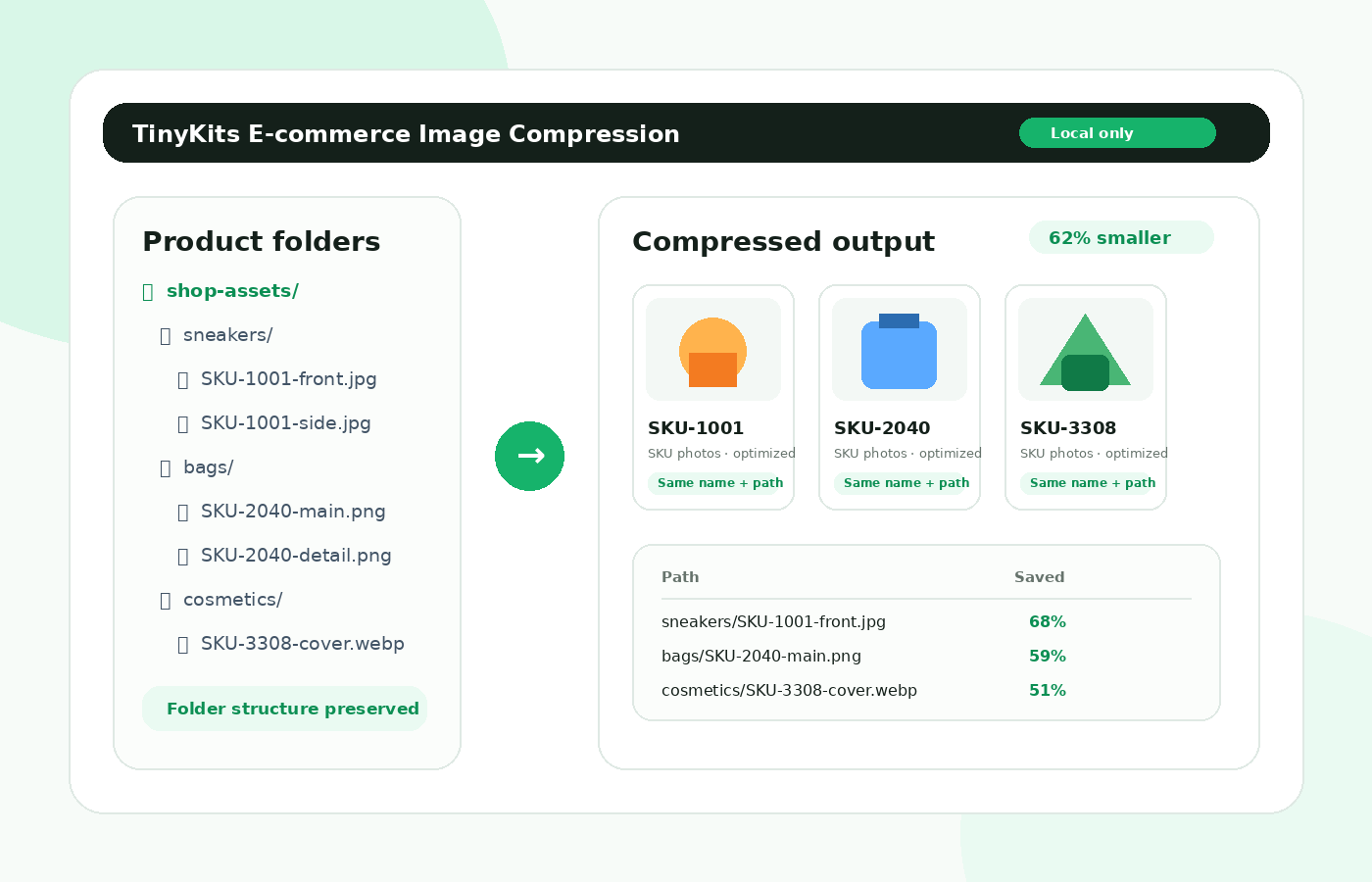
E-commerce image work is usually organized by SKU, category, product line, or upload batch. A normal image compressor often flattens everything into one folder, which makes replacement painful. TinyKits keeps the folder-based workflow intact.
Select a product image folder instead of choosing every JPG, PNG, or WebP file manually.
Preserve original product image file names so your optimized output matches existing store assets.
Keep category, SKU, and nested folder structure whenever possible for smoother replacement.
Compress product images in your browser whenever possible. Your product photos are not uploaded to TinyKits servers.
This page is especially useful when you already have product photos arranged by SKU, category, shop section, or campaign batch.
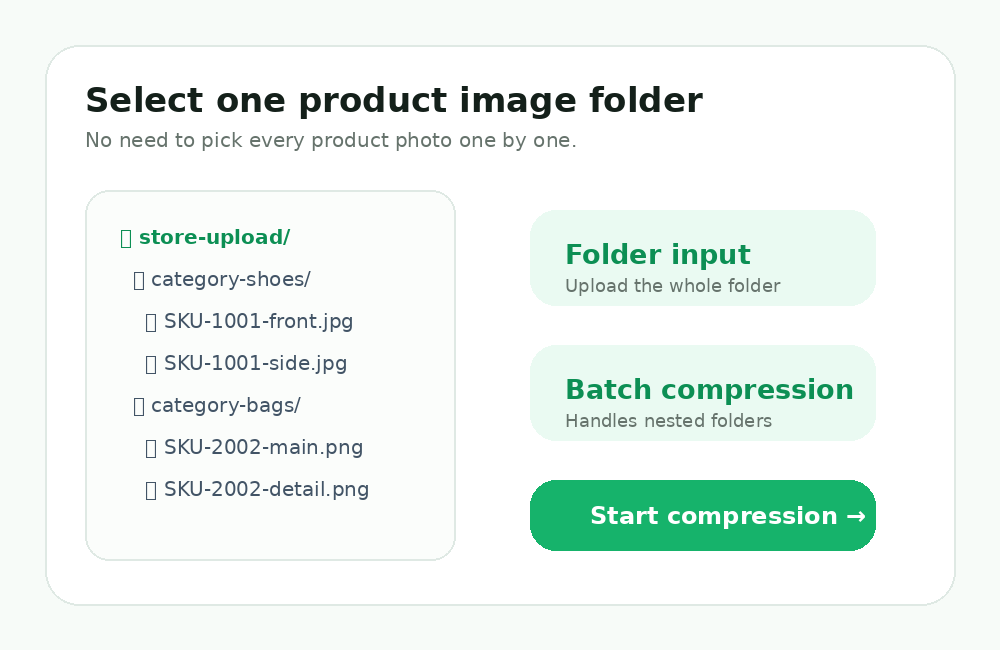 Step 1
Choose the whole folder containing product photos, SKU folders, category folders, and nested image assets.
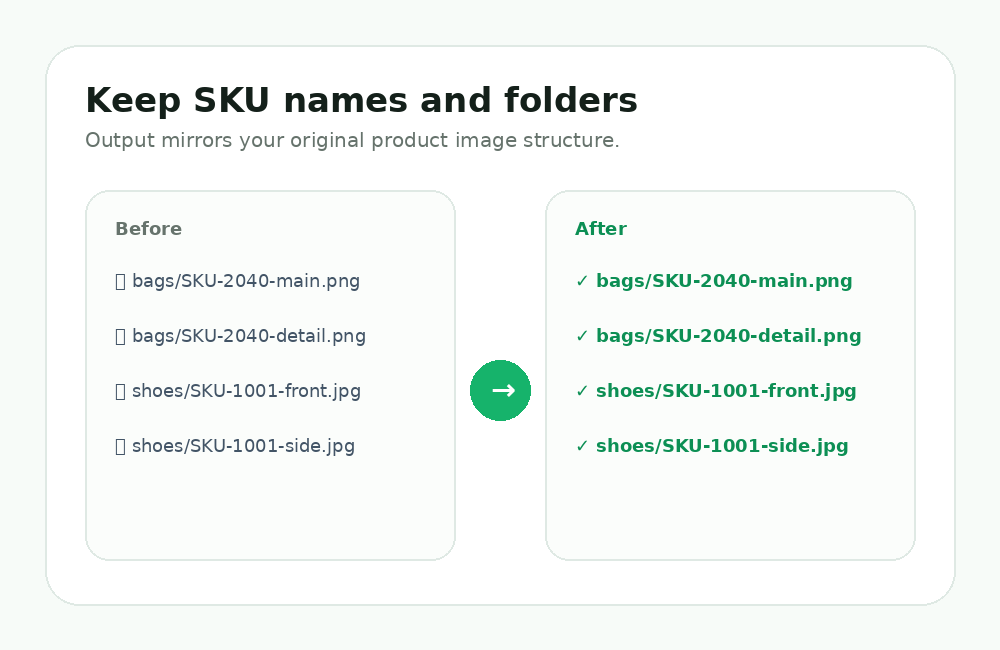 Step 2
Compression output mirrors your original structure, so SKU image names remain matched after optimization.
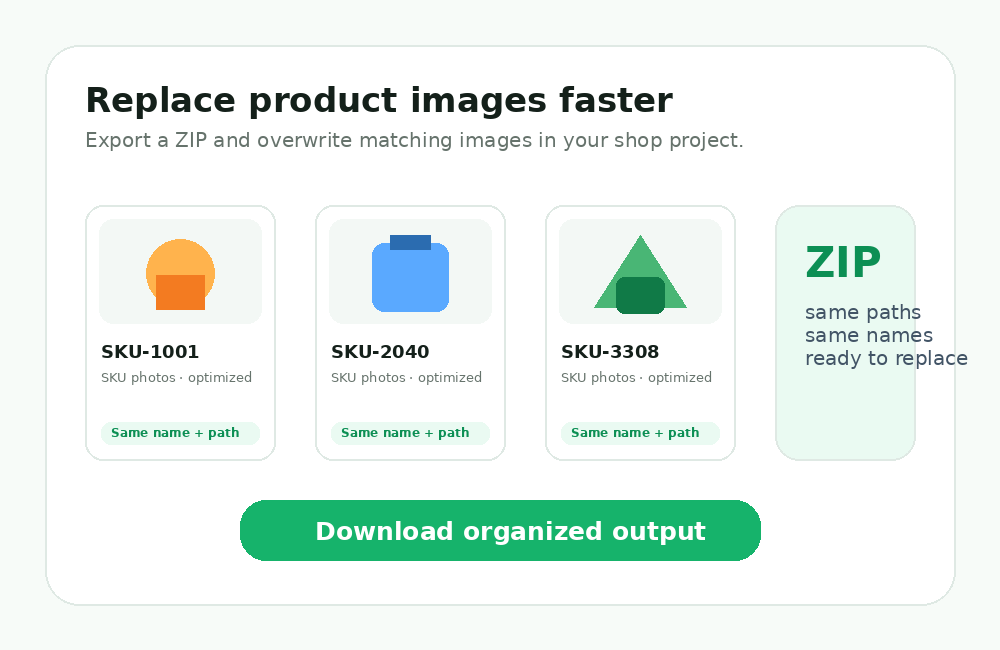 Step 3
Export organized optimized files and replace the old product images in your store project or upload folder.
Prepare lighter product photos before uploading or replacing assets in your storefront workflow.
Compress catalog images while keeping folders easy to match with your WordPress media workflow.
Handle large batches of listing images grouped by SKU, product line, or campaign.
Reduce product image weight without breaking the existing naming rules used by your team.
Choose the folder that contains your product photos, category folders, and SKU image sets.
Images are processed in your browser whenever possible, without uploading to TinyKits servers.
Original folder paths and product image file names are kept whenever possible.
Download optimized images that are easier to replace in your store or product asset folder.
Select your e-commerce product image folder, compress locally, and export organized images with the same file names and folder paths.
Yes. This workflow is designed for folder-based product image compression, so you do not need to manually select every product photo one by one.
Yes. TinyKits keeps original product image file names whenever possible, which makes it easier to replace existing store images.
When you select folders, TinyKits keeps folder paths whenever possible, including SKU, category, and nested product image folders.
This e-commerce folder workflow is positioned for unlimited quantity and unlimited file size use, subject to your browser and device performance.
No. Image compression runs locally in your browser whenever possible. Your product photos are not uploaded to TinyKits servers.
TinyKits supports common web and product image formats including JPG, PNG, and WebP.